2-8 Adding additional images to an existing record
7 Adding additional images to an existing record
Overview
- An additional four images may be added to an existing border inspection record
- Additional images must be located, selected and then submitted for inclusion with an existing inspection record
- Additional images can only be uploaded to one inspection record at a time.
Adding additional images
| Step | Action |
|---|---|
| 1 |
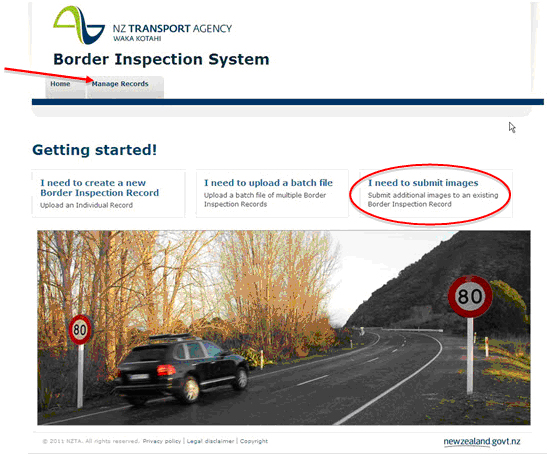
On the homepage, add additional images by using one of the methods below:
|
| 2 |
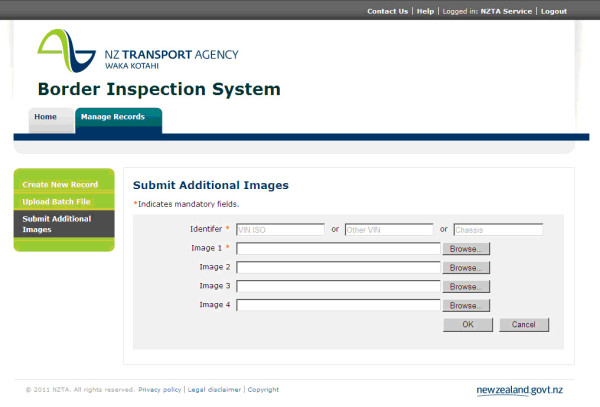
A new window will open that provides browser capability to enable additional images to be selected:
|
| 3 |
Enter the Identifier associated to the existing inspection record that you wish to add the images to. This will be either:
Note: VIN ISO cannot include: ‘O’ for Oscar, ‘I’ for India or ‘Q’ for Quebec, and must be 17 characters in length. |
| 4 |
Next to Image 1, click on Browse… to locate the image to be uploaded. Refer to the Attachments section for attachment specifications. |
| 5 | Once selected, the name of the image for uploading will be displayed in the Image 1 box. |
| 6 | Use the Image 2, 3 and 4 boxes to upload more images, if necessary, clicking on Browse… beside each box to locate the images to be uploaded. |
| 7 | After you have uploaded all necessary images, click on OK. |